
How to: Add Co-developers and Collaborators to Your Project
Overview
You can add co-developers and collaborators to your Think4Ever account as company users. Each person gets their own login, one or more roles that set what they can do, and access only to the projects you choose.
Company users are sub-accounts under your Think4Ever account:
- They don't need their own Think4Ever subscription or sign-up.
- They work in your workspace and use your account's credits.
- They see only the projects they own or that you grant them.
Use company users for your own team: developers, designers, testers and business analysts. To hire outside talent, use the Think4Ever Marketplace. A freelancer who accepts a Marketplace contract is added to this same user list automatically, with the role and projects set in the contract.
Roles and access
Two settings decide what each person can do:
- Roles set what they can do. Each role bundles a set of permissions. If you give someone several roles, they get every permission from all of them.
- Project access sets where they can do it. People see only the projects you tick for them.
Match the role to the work:
Think4Ever has nine built-in roles:
| Role | What it allows | Use it for |
|---|---|---|
| Administrator | Full access to all system features (62 permissions) | People who run the account |
| Developer | Manage projects, tasks, code and databases (51 permissions) | Co-developers who build and code features |
| Project Manager | Manage timelines, tasks, reports and team assignments. No code access (33 permissions) | Leads who plan work and assign issues |
| Concept/UI Designer | Concepts and the UI Builder for designing screens (14 permissions) | Designers working on concepts and screens |
| DevOps Engineer | Version control integrations, deployments and database connections (12 permissions) | Whoever handles deployment and infrastructure |
| Business Designer | Business design work | Analysts who define requirements and flows |
| QA Engineer | Testing work | Testers |
| Security Analyst | Security work | Security reviewers |
| Viewer | Viewing work | Stakeholders who only need to look |
Each role lists its exact permissions in the dialog, so you can check before you assign it.
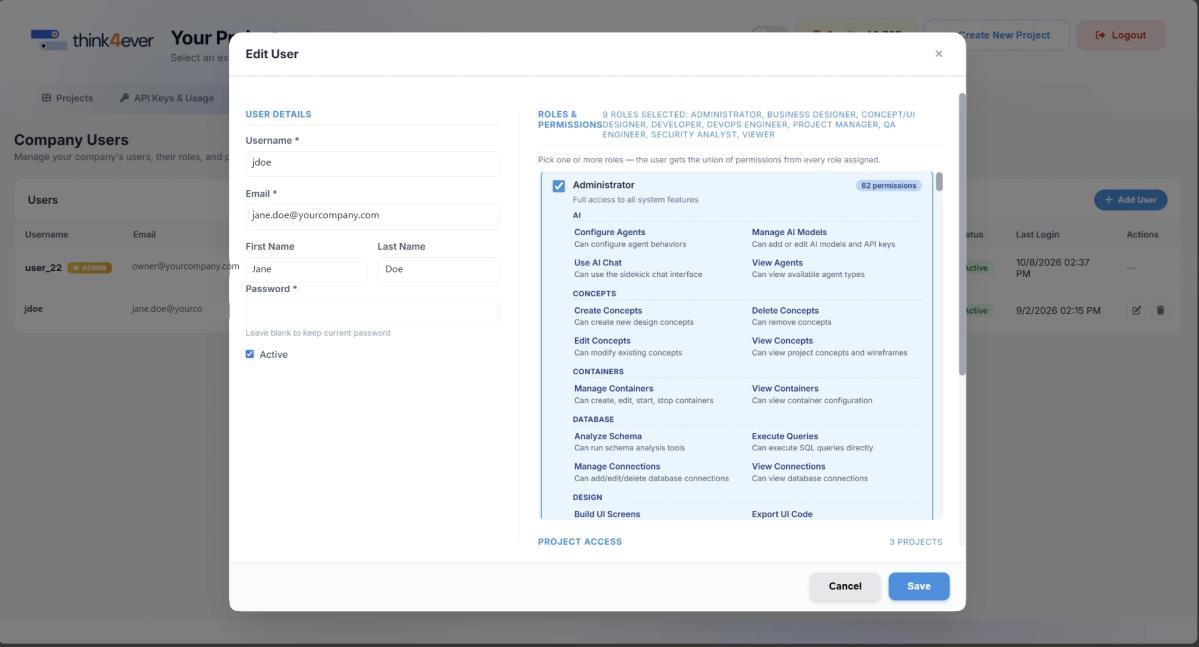
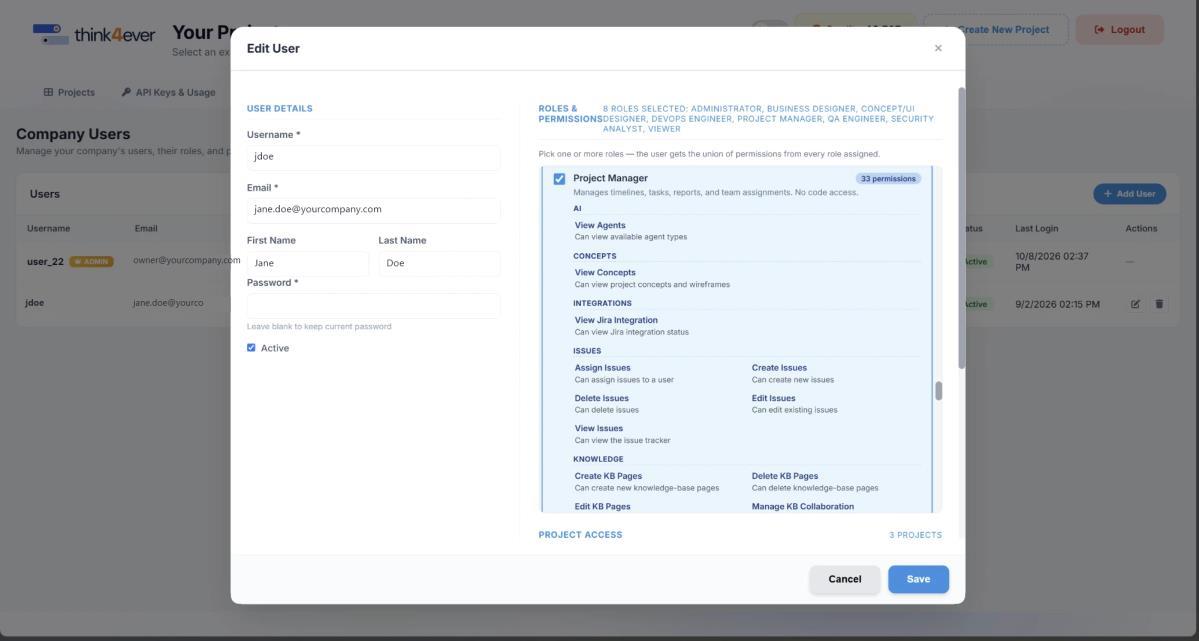
Permissions are grouped by area, for example:
- AI: configure agents, manage AI models, use AI chat, view agents
- Concepts: create, edit, delete and view design concepts and wireframes
- Containers: manage and view containers
- Database: analyze schemas, run queries, manage and view connections
- Design and further groups listed in the Add User dialog
Give each person the smallest role that covers their work, and only the projects they need.
Step by step: add a user
- Open your projects list. Sign in to Think4Ever and go to Your Projects.
- Open the Users tab. Click Users next to Projects, API Keys & Usage and Marketplace.
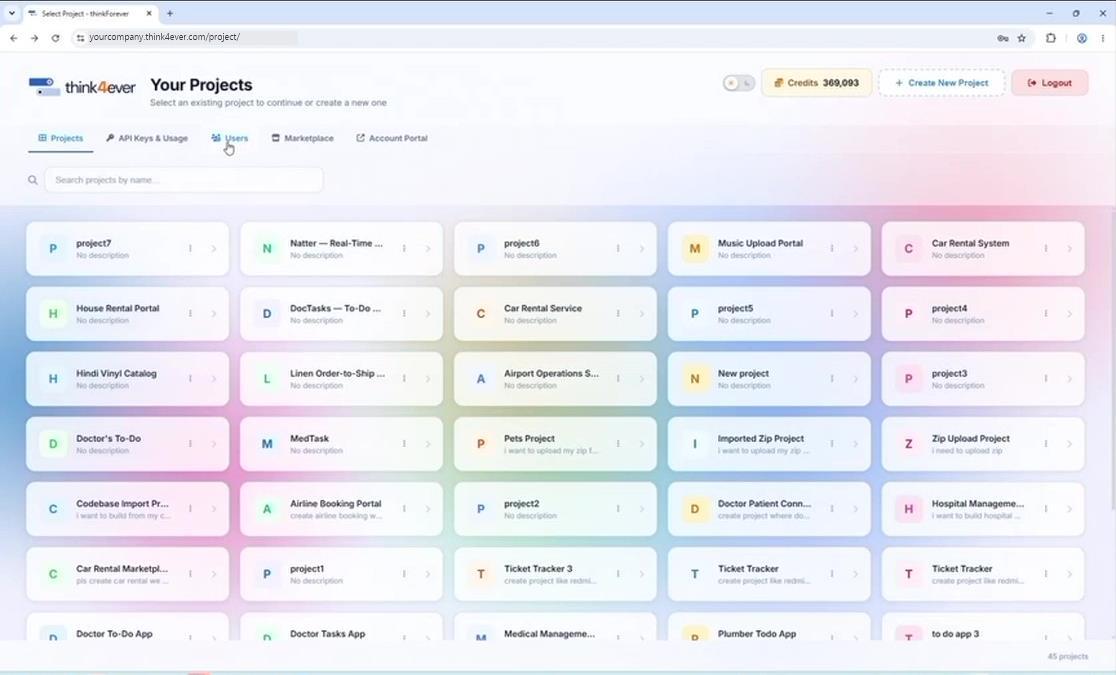
- Review your company users. The Company Users page lists everyone on your account, with their username, email, name, roles, status and last login. You are marked ADMIN.
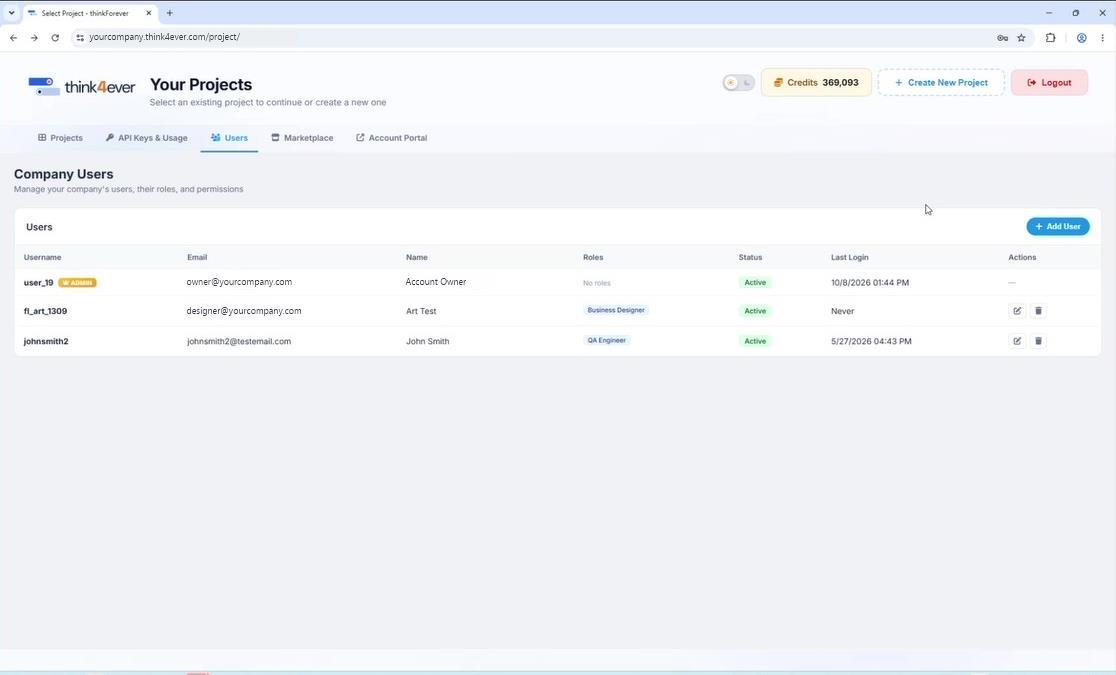
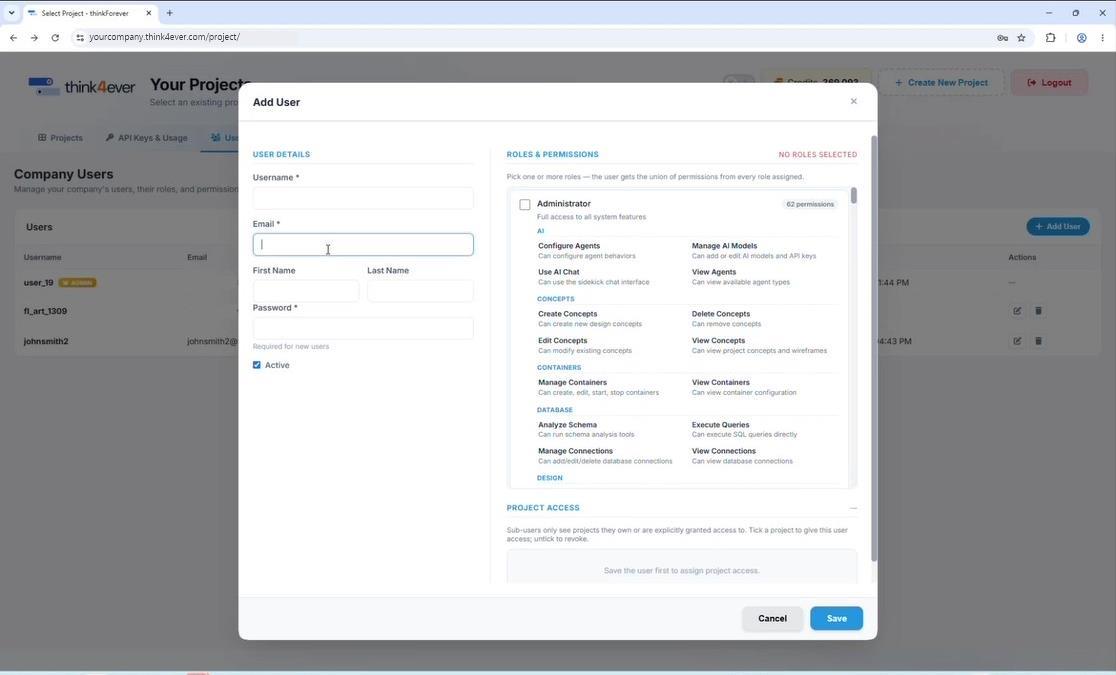
- Click Add User.
- Fill in User details:
- Username (required)
- Email (required)
- First Name and Last Name
- Password (required for new users). Share it with the person securely. They can't change it themselves.
- Active: leave ticked so they can sign in
- Pick their roles. Under Roles & Permissions, tick one or more roles. Each role lists its permissions so you can see exactly what it allows. Until you pick one, the dialog shows No roles selected.
- Click Save. The user now appears in the Company Users list.
Give access to projects
New users see no projects until you grant them. Project access is set after the user is saved:
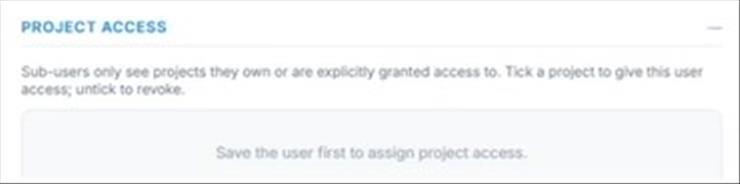
In the Add User dialog, the Project Access panel stays empty until you save the user:
Once saved, open the user again with the edit (pencil) icon in the Actions column:

- On Company Users, click the edit icon next to the user. The Edit User dialog opens.
- Scroll down to Project Access. It lists every project in your account, with a count of the projects this user can reach (for example, 3 PROJECTS).
- Tick each project the user should work on. Its badge changes from NO ACCESS to GRANTED. Untick a project to revoke access.
- Click Save.
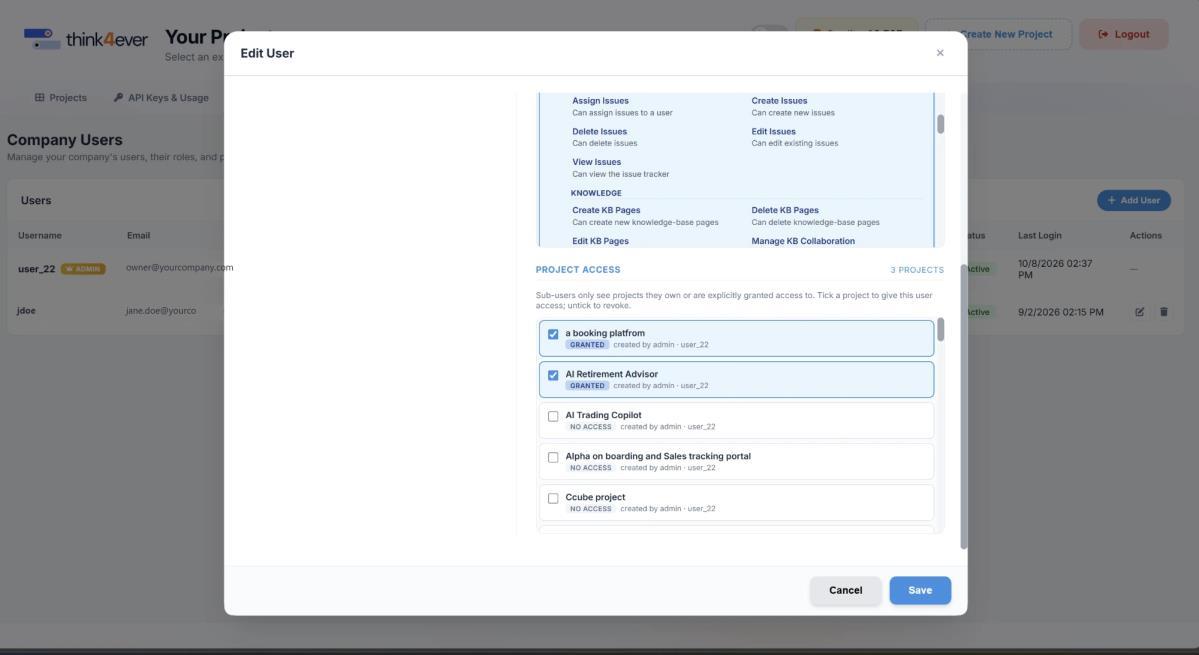
In the same dialog you can also change their roles or set a new password. Leave the password blank to keep the current one.
The user now sees those projects, plus any they create themselves, and can work in them with the permissions of their roles.
Example: to bring in a tester for your Airport Operations System, add them with the QA Engineer role and tick only Airport Operations System. They can test that project and see none of your others.
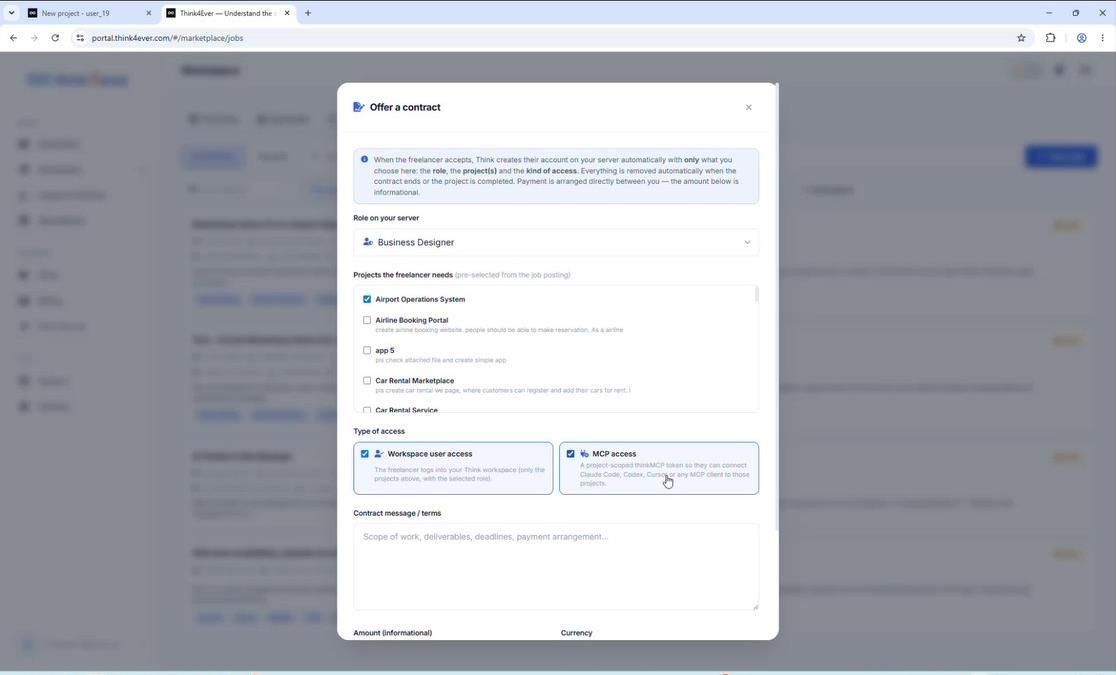
Hiring through the Marketplace? You pick projects the same way when you offer a contract. Under Projects the freelancer needs, tick the projects they should work on, then choose their role and type of access. The freelancer is added to Company Users with exactly that access when they accept.
What the new user sees
- Their own login. They sign in at portal.think4ever.com, the same place as every Think4Ever user, with the username and password you set. They can't change their password themselves. To give them a new one, edit the user and enter a new password. Their account is separate from yours, but it sits under your company account.
- Only their projects. Their project list shows only the projects you granted and any they create themselves.
- Only their permissions. Features outside their roles aren't available to them.
- Your credits. Work they do with Think4Ever AI uses your account's credits.
Manage and remove users
Each user on Company Users has two actions:
- Edit (pencil icon): change their details, roles or project access.
- Delete (bin icon): remove the user. Think4Ever confirms with User deleted successfully.
To pause someone's access without deleting them, edit the user and untick Active.
FAQ
Do co-developers need their own Think4Ever subscription?
No. Company users are sub-accounts under your account and use your credits.
Can I add someone who already has a Think4Ever account?
No. A company user must have an email address that isn't already registered with Think4Ever.
What's the difference between a company user and a Marketplace freelancer?
You add company users yourself, for your own team. A freelancer is added for you when they accept a Marketplace contract, with the role and projects set in that contract, and their access ends with the contract.
Can one person have several roles?
Yes. They get every permission from every role you assign.
Can a company user change their own password?
No. Only the account owner can set it. To change it, edit the user on Company Users and enter a new password.