
How to: Design in Think, Code in Claude
Overview
Think4Ever holds your project's design: concepts, requirements, flows, UI screens and tasks. Claude Code writes the code. The Think MCP server connects the two, so Claude Code reads your Think design and builds against it.
This guide shows you how to:
- Connect a Claude Code project to Think4Ever in about two minutes
- Pick how and where the code gets built
- Build, test and run the app on a public Think4Ever URL
- Keep Think4Ever and your code in sync
The same steps work with any coding agent that supports MCP, such as Cursor or OpenAI Codex.
Who it's for. If you work alone on a small project, Claude Code on its own may be enough. Use Think4Ever with Claude Code when several developers share a project, or when you need to see and control the business flows behind it. Think4Ever keeps the shared "brain" of the project, so team members can work in parallel from their own Claude Code sessions.
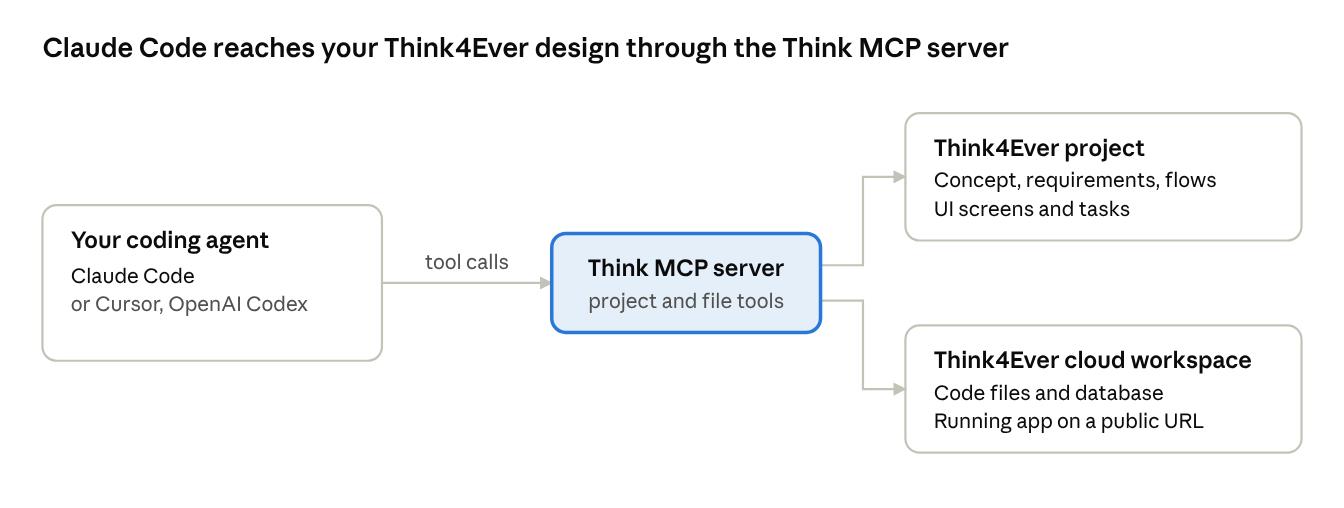
Claude Code reads the design from your Think4Ever project and writes code into the Think4Ever workspace, where the app runs.
Before you start
You need:
- A Think4Ever account and a project with its concept in place (requirements, flows and, ideally, UI screens)
- Claude Code installed on Windows or macOS
- An empty folder on your computer for this project
- Optional: Git or another version control system, if you want the code in your own repository
Tip: design the UI screens in Think4Ever before you start coding. The demo app skipped this step, so Claude Code designed the screens itself. When the screens are planned in Think4Ever first, the app is built screen by screen against them and the result looks much better.
Step 1: Connect Claude Code to Think4Ever
You connect once per project. It takes about two minutes.
- Create a folder for the project on your computer, open a terminal,
cdinto it and start Claude Code. - In Think4Ever, open your project and choose MCP & Tools → Claude Code.
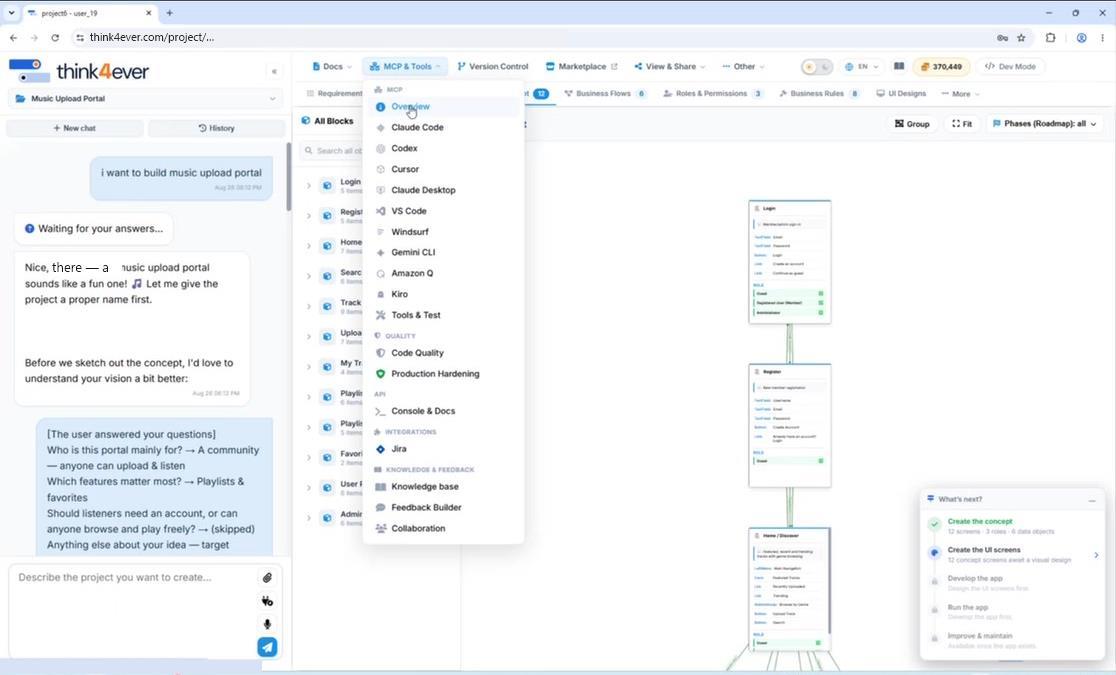
- Click Create token and copy the token right away. It is shown only once. You can manage or revoke tokens later under API → Access Tokens.
- Copy the Add the server command from the same page. It looks like this:
claude mcp add think4ever \
  --transport http https://<your-think4ever-cell>/mcp \
  --header "Authorization: Bearer <your-token>"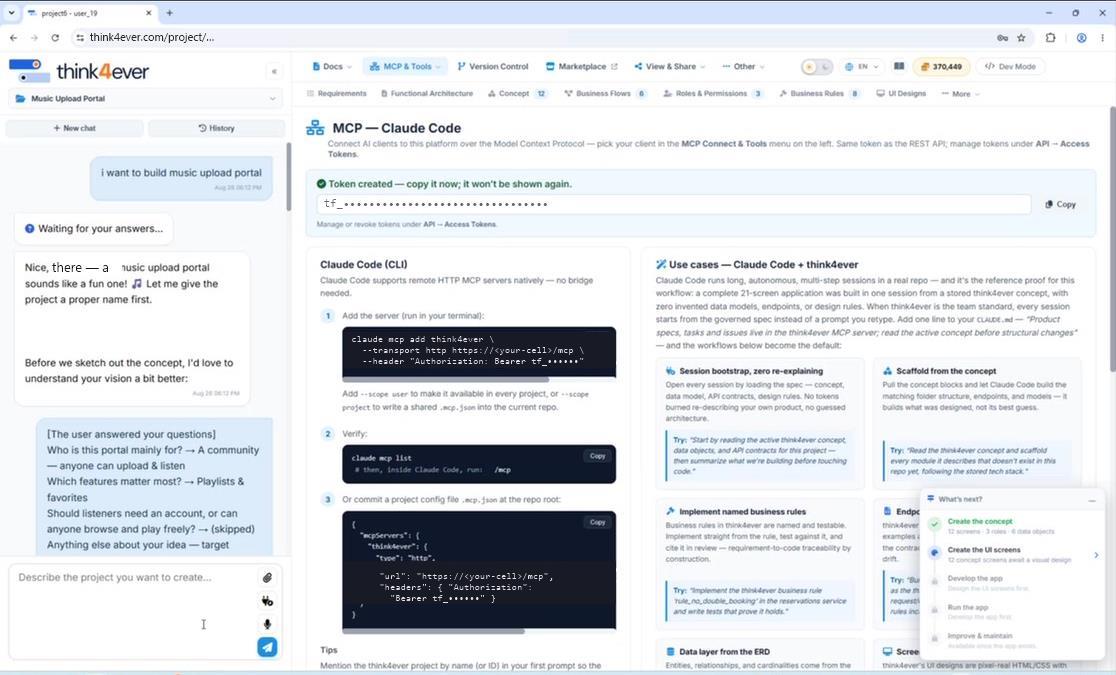
- Paste the command into your terminal, or into Claude Code and let it run it. Claude Code confirms that the think4ever MCP server is added and connected.
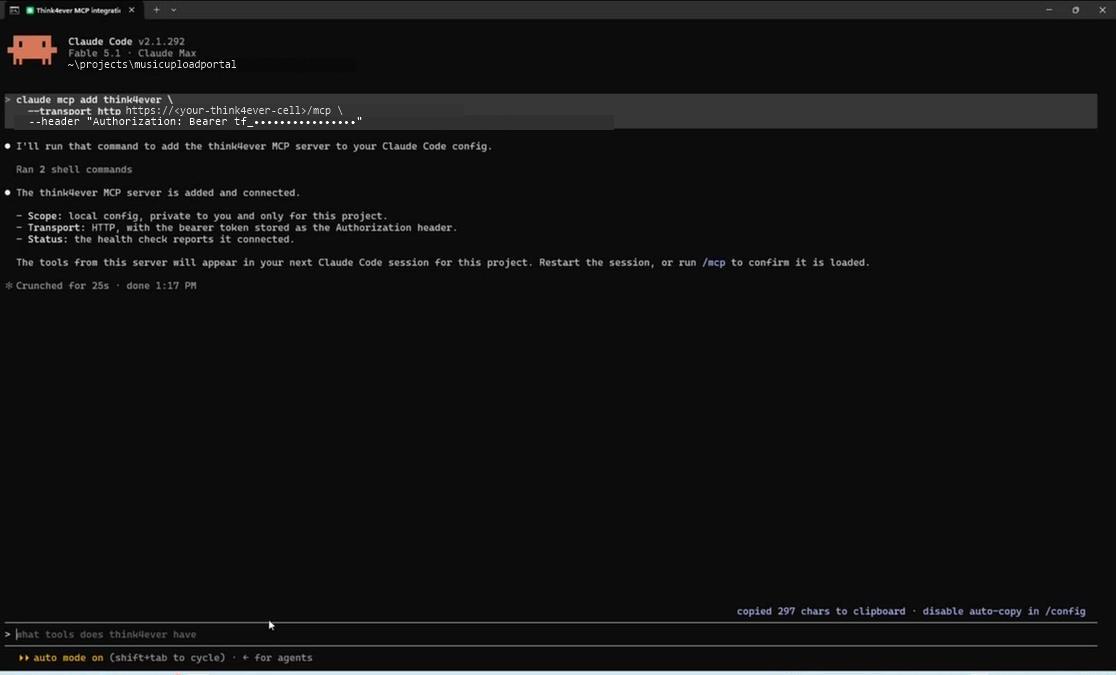
- Restart Claude Code in the same folder. Tools from a new MCP server load only in a new session. You can also run
/mcpto confirm they are loaded. - Check the connection. Ask Claude Code something like "Do you see my Think4Ever project?" It should name your project.
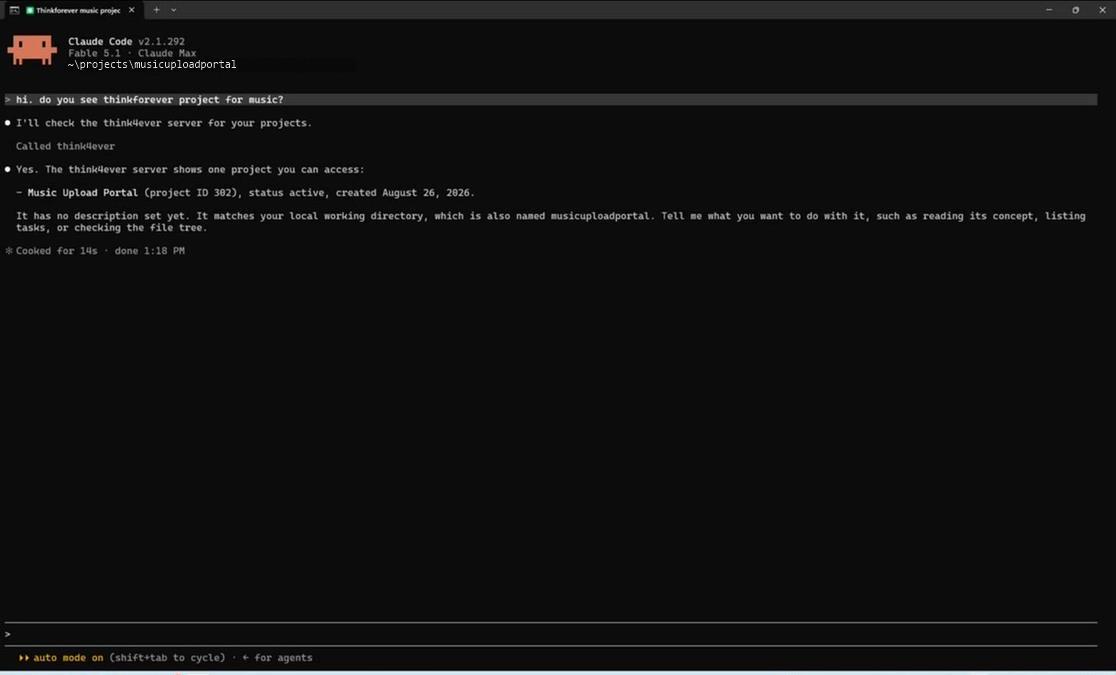
To share the setup with your team, the same page also offers --scope user (available in every project) and a .mcp.json file you can commit to the repo.
Once connected, Claude Code can use the Think MCP tools to read and change your project:
| Area | What the agent can do |
|---|---|
| Projects | List, get, create and update projects |
| Concept | Get the active concept, list technology options |
| Tasks | List tasks, get a task |
| Files | Get the file tree, search files, search inside files, find and replace, delete files |
To see every tool, open MCP & Tools → Tools & Test in your Think4Ever project and click List MCP tools.
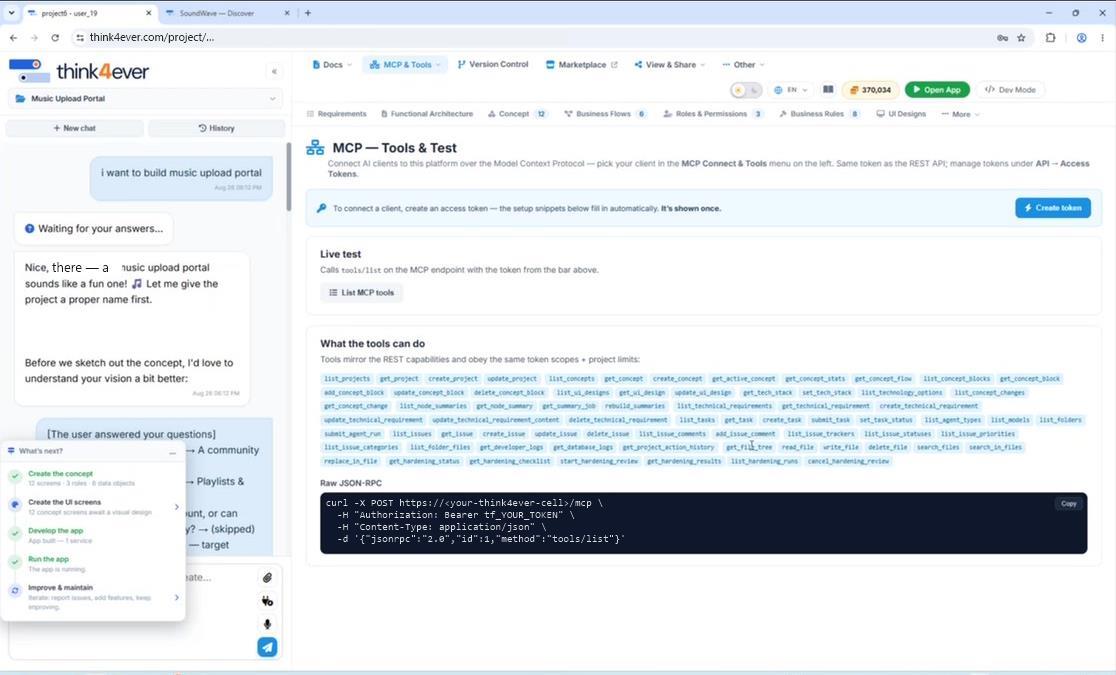
Step 2: Choose how to build
Ask Claude Code how you can develop this project, for example: "Which development options do we have?" You don't need to say local or cloud. The Think MCP server already tells Claude Code about the options, and it lists them for you.
In every scenario you design in Think4Ever. What changes is who builds the code and where it runs.
| Scenario | Who builds | Where it runs | AI usage |
|---|---|---|---|
| 1. Design in Think4Ever, build in Think4Ever | Think4Ever agents (Developer, Database, Security, Test Cases and others) write the code from your design | Think4Ever cloud | Think4Ever AI credits |
| 2. Design in Think4Ever, build locally with Claude Code | Claude Code reads the design through MCP and builds the app in your local folder | Your machine. You run the app server, database and services locally (for example Node and MySQL) | Your Claude Code plan |
| 3. Design in Think4Ever, build in Think4Ever cloud through Claude Code (recommended) | Claude Code reads the design and writes the code straight into your Think4Ever workspace | Think4Ever cloud tools: app server, database, services and a public URL | Your Claude Code plan |
Claude Code may use its own names for these. In the demo it called them "Develop inside think4ever" (scenario 1), "Develop locally with me" (scenario 2) and "Hybrid" (scenario 3).
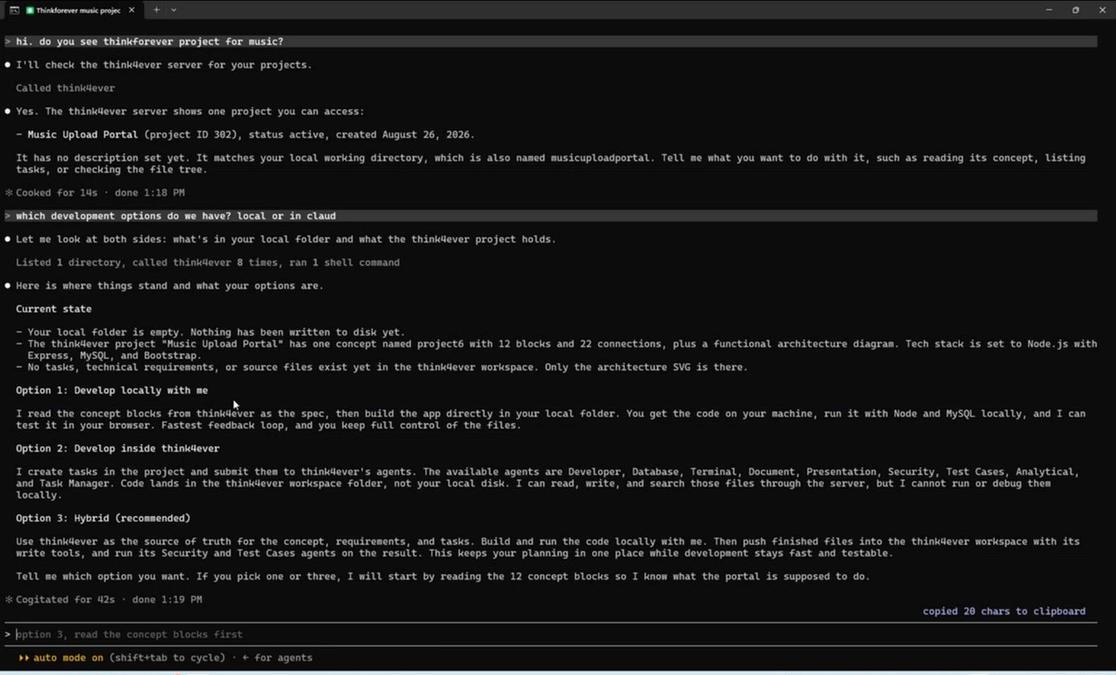
Recommended: scenario 3. Claude Code does the coding on your own plan, and Think4Ever keeps the design, the hosted app and its database in one place your team shares.
For scenario 3, Claude Code then asks how the code should get built inside Think4Ever. Choose I write it into think4ever. Claude Code then writes every file straight into your Think4Ever workspace. The other choices hand the coding to Think4Ever agents, which is scenario 1 and uses Think4Ever AI credits.
If Claude Code starts writing files locally anyway, tell it "not locally". It asks whether to delete the local scaffold and switches to writing into Think4Ever.
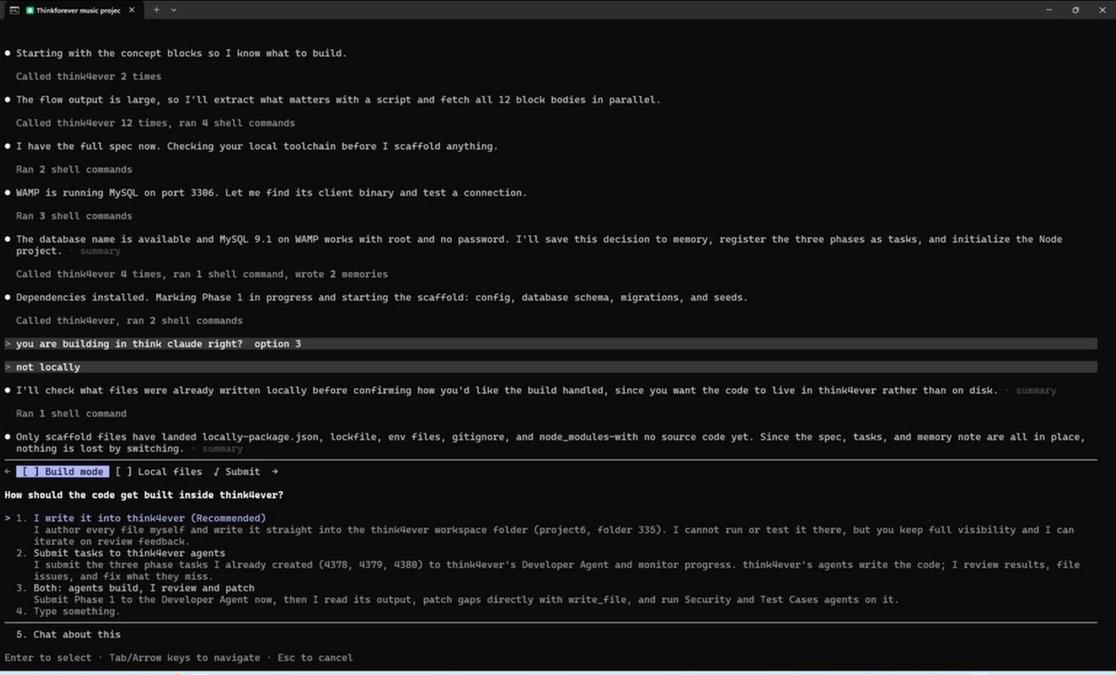
Step 3: Build, test and run the app
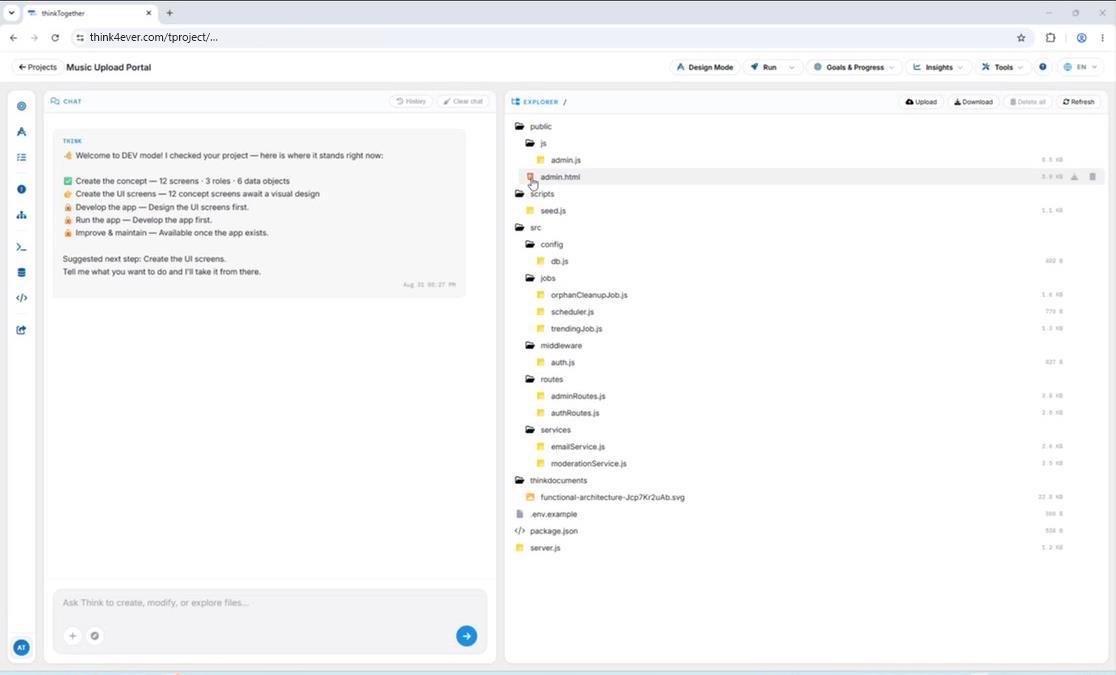
- Start development. Tell Claude Code to start building. It writes files into your Think4Ever project, and you can watch them appear in the project's file explorer as they are written.
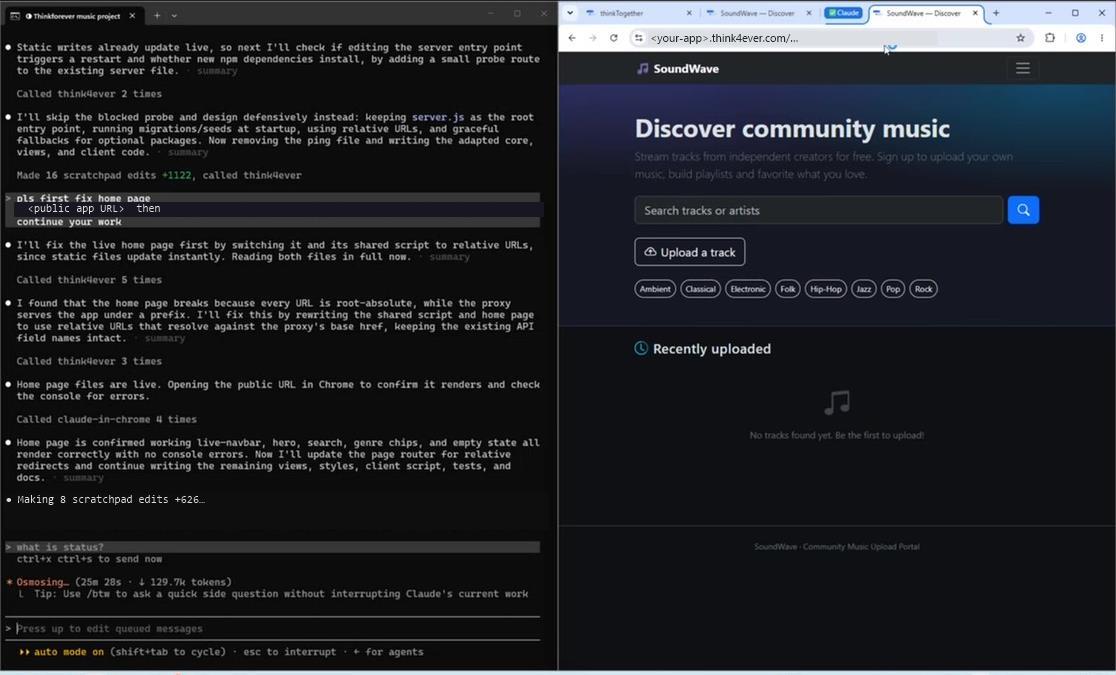
- Start the service. Tell Claude Code to start the service. Think4Ever hosts the app and gives you a public URL that anyone can open. Share that URL with Claude Code.
- Let Claude Code test it. Claude Code opens the public URL in a browser, checks the pages and fixes the bugs it finds. All debugging happens in Claude Code.
- Add demo data. A new app is empty. Ask Claude Code to "also add demo data". In the demo, it added a seed script with demo artists and tracks with cover art.
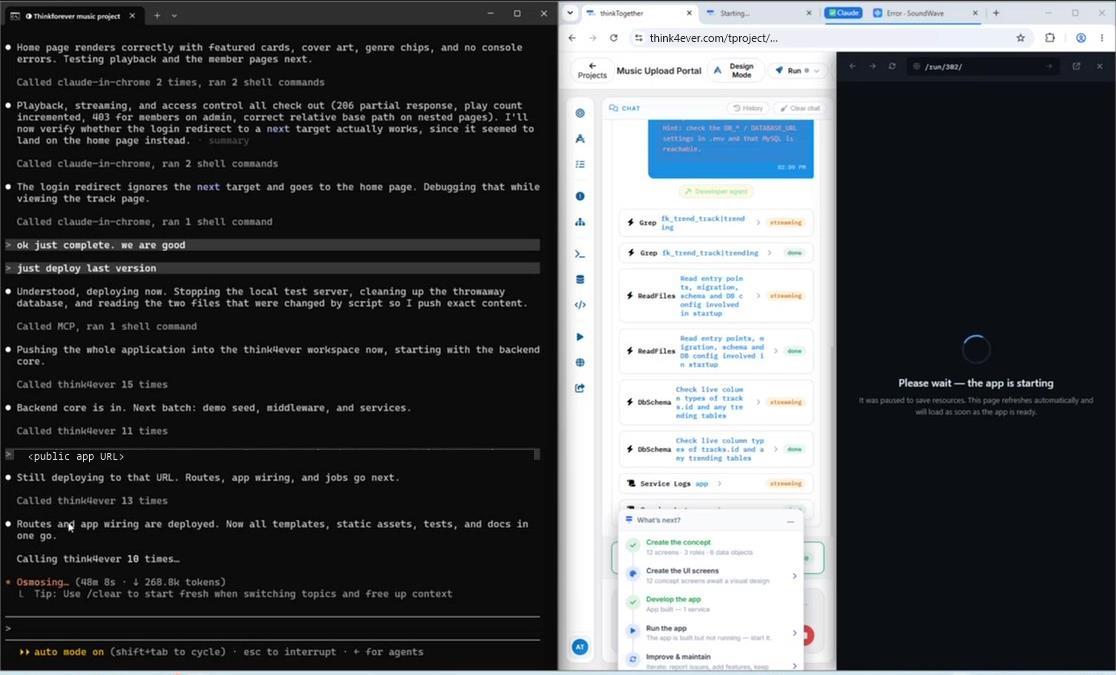
- Let Think4Ever fix issues too. The Think4Ever agent can spot issues in the code Claude Code submitted. Submit them for fixing from Think4Ever. Here, two agents work on the same project.
- Review and iterate. Open the public URL, check the app, and ask Claude Code for any design or feature changes.
Control how hard Claude Code thinks. In Claude Code you can set the effort level (for example high, medium or max). Higher effort means longer reasoning on each step and more token use.
Tips and troubleshooting
Claude Code builds locally even though I said to build in Think4Ever. Claude Code doesn't always follow instructions. It may build and test on your machine first, then push to Think4Ever. If you don't want that, say clearly at the start: "Do not run anything locally. Build and run only inside Think4Ever." Remind it if it drifts.
Two agents are overwriting each other's code. Don't let Claude Code and the Think4Ever agent change the same files at the same time. Wait for one to finish, or stop one, before the other starts.
The app in Think4Ever doesn't show my latest changes. Claude Code may still be deploying, or it may have built locally and not pushed yet. Wait for the deploy to finish, then run the app again in Think4Ever.
Links point to a local database after moving the code. Code first written for your machine (database links, connection strings) has to be updated before it runs in Think4Ever. Ask Claude Code to fix them for the Think4Ever environment.
Think4Ever's concept is out of date after coding. Ask Think4Ever to start a fresh scan of the code. It updates the project structure and concepts to match.
Version control. You have two choices: keep the code locally and connect Git or SVN from your machine, or use Think4Ever's version control. Pick the one that fits your team.
Working as a team. Give teammates access to the Think4Ever project. Each one connects their own Claude Code session (Step 1) and works in parallel without breaking each other's work.
Other coding agents. Cursor, OpenAI Codex and other agents that support MCP connect the same way and get the same Think MCP tools.