
How to: Turn Existing Code into a Living Blueprint
Overview
Developers are writing code faster than ever with AI assistants, often at the expense of architectural context and business rules. Manual code reviews and testing catch some issues, but they depend on design documents that someone keeps up to date by hand. Think4Ever analyzes your existing repository and creates a Living Blueprint: a complete set of design artifacts that stays up to date with the code.
From your code, Think4Ever builds:
- Requirement specifications
- Functional architecture: every screen and flow, end to end
- Application technical architecture: frontend UI, backend APIs and data model, each block mapped to its files
- Concept map: a system map of the screens and building blocks, with plain-language summaries
- Business flows and business rules
- UI designs and data objects
- Roles & permissions, plus integration maps, API endpoints, state and lifecycle events, jobs, environments and configuration
Use it to onboard developers, review a system before changing it, or bring an existing app into Think4Ever so new work stays true to the design.
This guide follows the public OpenAPI Petstore sample, a Spring Boot API for pets, orders and users. Analyzing existing code is one of two starting points. The other is designing from intent, covered in How to: Build an Application from Intent. Both lead to the same Living Blueprint.
Watch it first: see the whole flow in the two-minute Code → Design video, also on the think4ever.com home page.
Step 1: Bring in your code
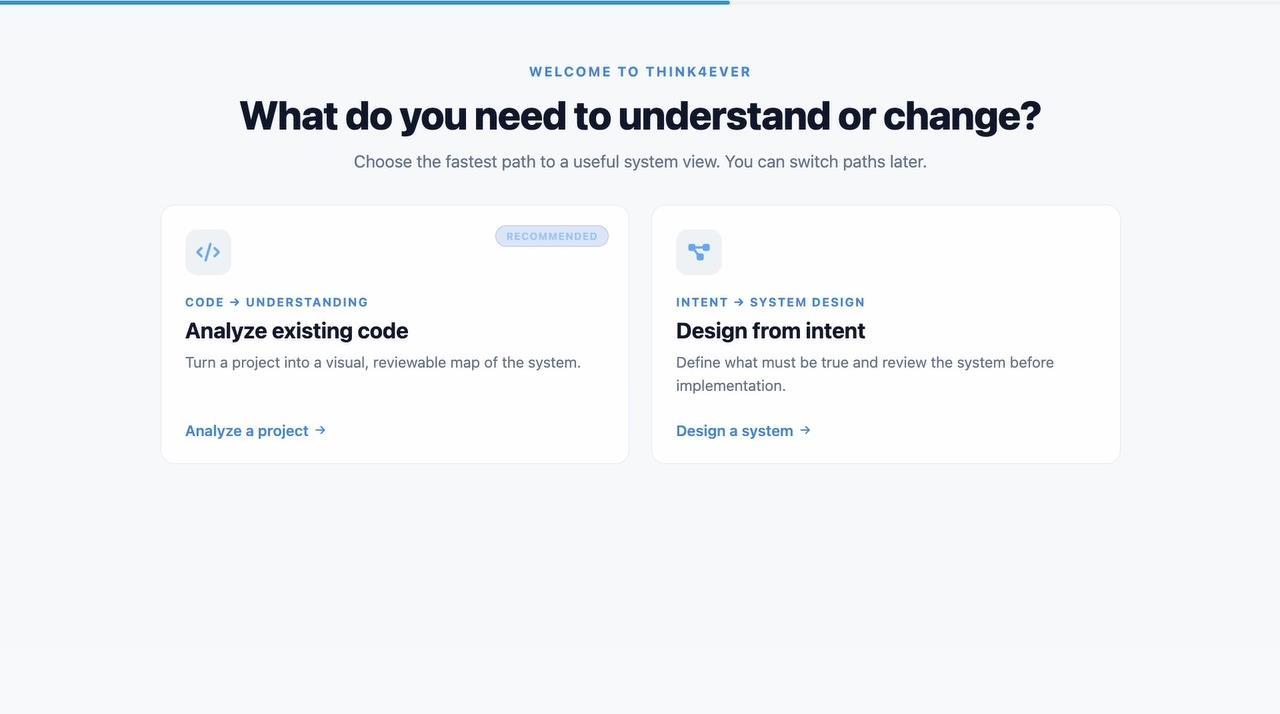
- Choose Analyze existing code. When you start a project, Think4Ever asks "What do you need to understand or change?" Pick Analyze existing code → Analyze a project.
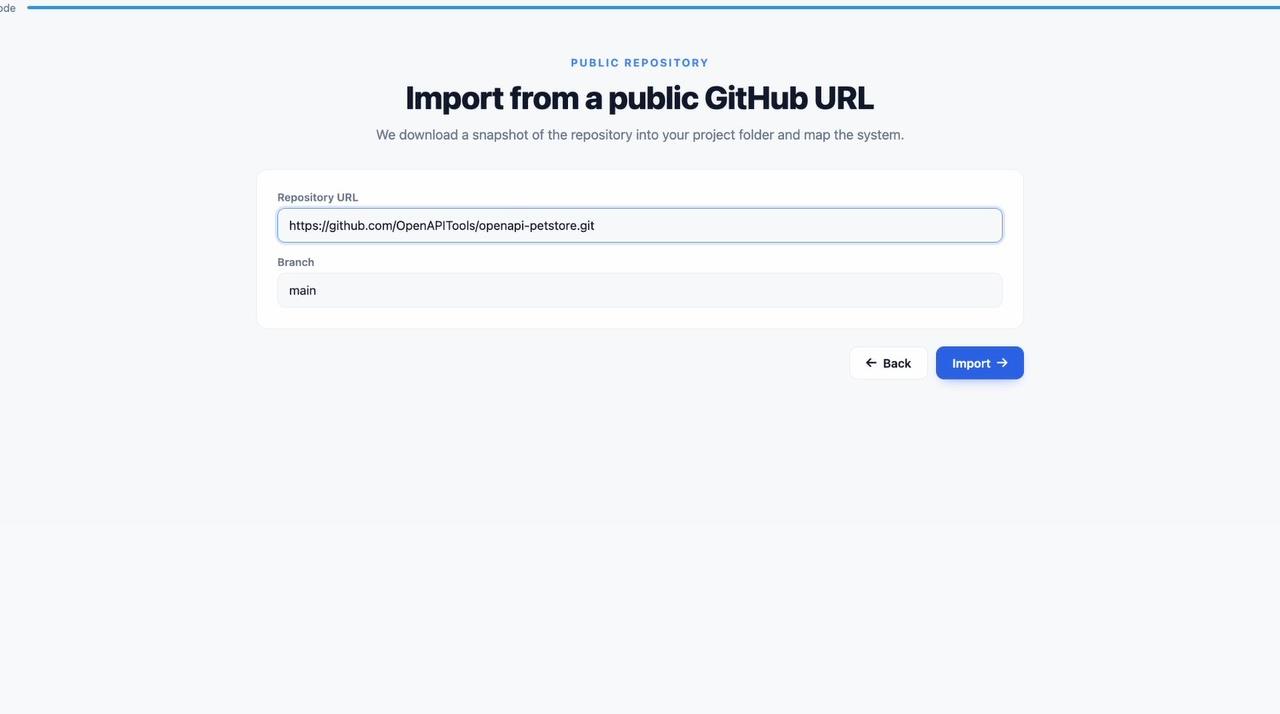
- Point Think4Ever at the repository. This guide imports from a public GitHub URL. Enter the Repository URL, for example
https://github.com/OpenAPITools/openapi-petstore.git, and the Branch, for examplemain. - Click Import. Think4Ever downloads a snapshot of the repository into your project folder and starts mapping the system.
Step 2: Let Think4Ever analyze the code
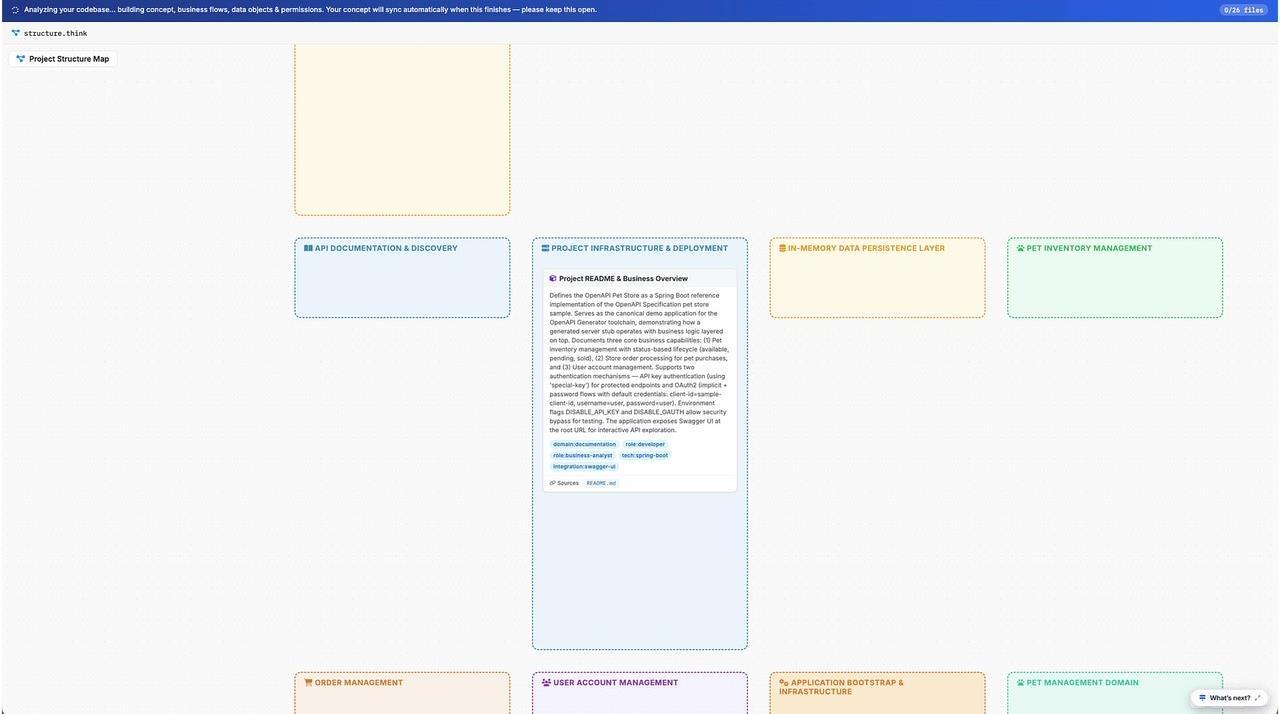
Think4Ever reads the codebase file by file and builds the concept, business flows, data objects and permissions as it goes. A bar at the top shows progress, for example 0/26 files. Keep the page open: the concept syncs automatically when the analysis finishes.
While it works, the Project Structure Map fills in. Related code is grouped into domains, such as Pet Inventory Management, Order Management and User Account Management. Each finding is written in plain language, tagged by domain, role and technology, and linked to the source files it came from.
When the analysis is done, you have a full Application Blueprint for the codebase. The next step shows how to explore it.
Step 3: Explore the blueprint
The blueprint is organized in tabs across the top of the project: Requirements, Functional Architecture, Concept, Business Flows, Roles & Permissions, Business Rules, UI Designs and more. For the Petstore, Think4Ever found 10 screens, 10 business flows, 11 business rules, 6 data objects and 4 roles.
Screens and building blocks
The Concept tab is a system map of every code module and how the blocks relate. Start with the full view for an at-a-glance overview, then zoom into any node to drill down. Use it to understand the design as a whole, check that it's functionally complete, and map dependencies.
Each screen and block shows the fields, buttons and links it holds. The Petstore came out as four modules: API Portal & Auth, Pet Management, Store & Orders, and User Management. The customer journey is shown as well: authorize, browse, view a pet, place an order, and manage it.
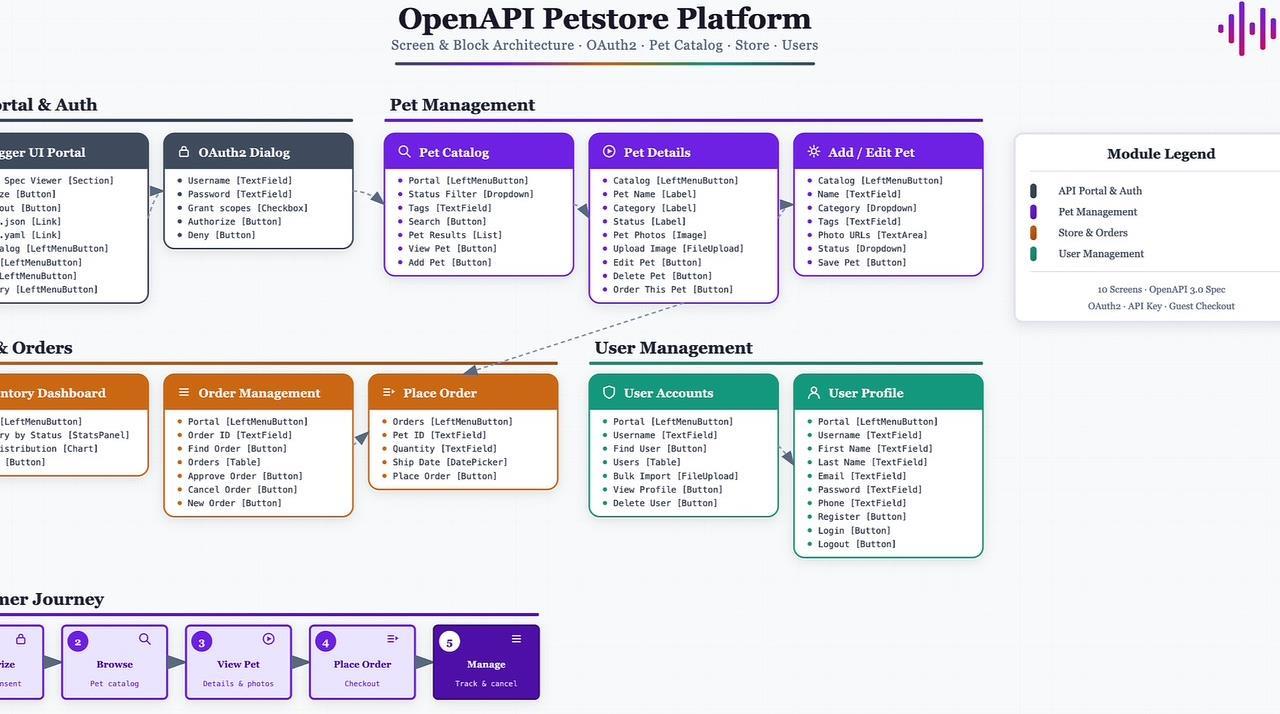
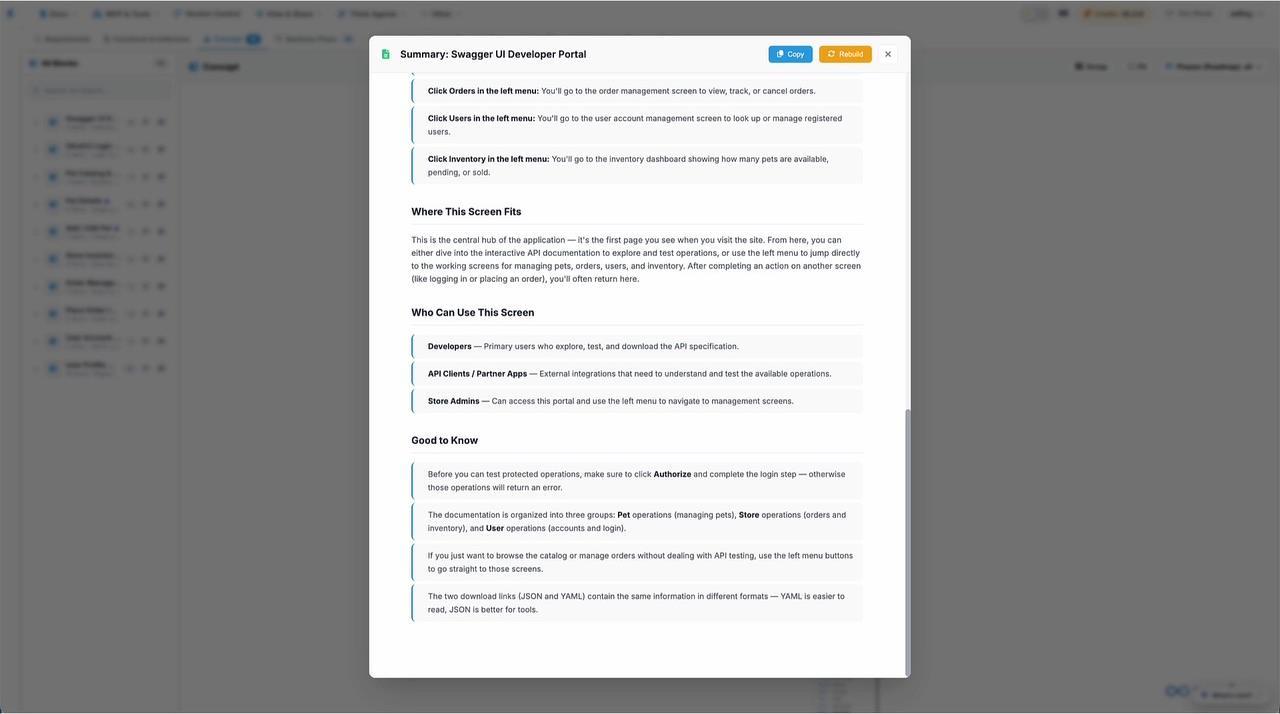
Open any block to read its Summary: what you can do on the screen, where it fits in the app, who uses it, and things to know. You can copy the summary or rebuild it.
Functional and technical architecture
The Functional Architecture tab maps the complete application concept: all screens and flows, end to end. You no longer need to read the code to understand what the application does.
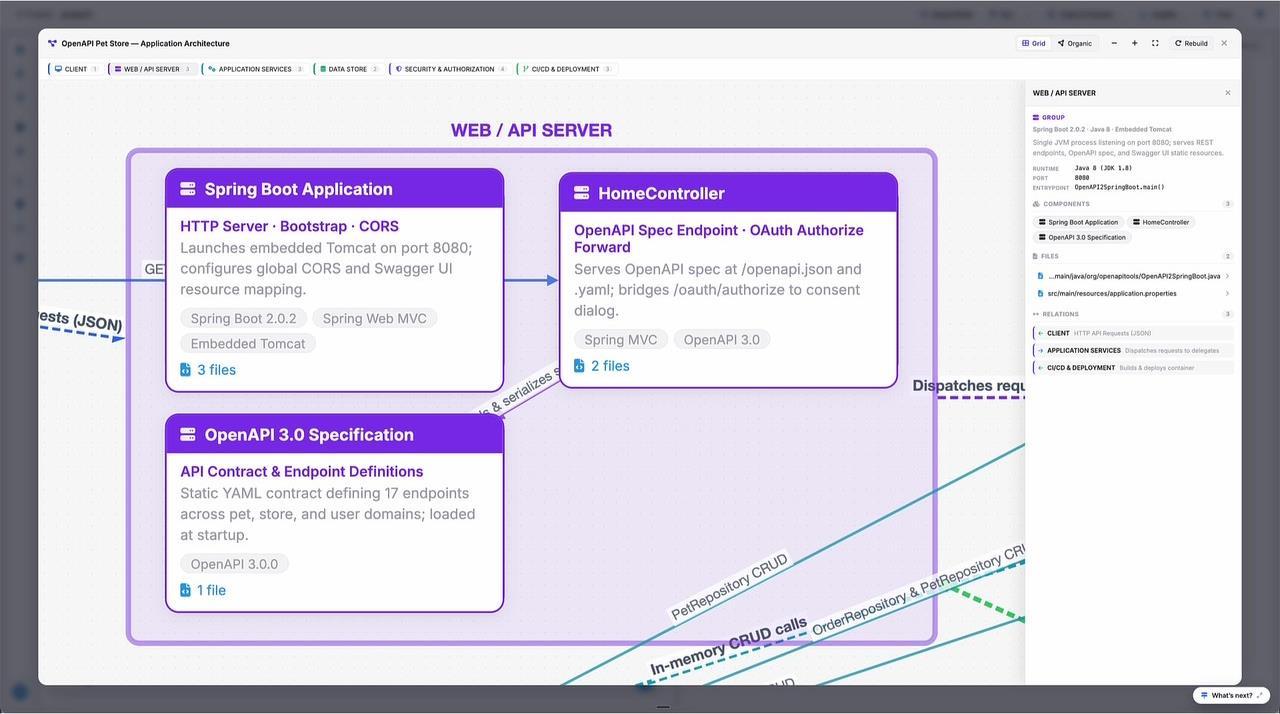
The application technical architecture covers the full stack: frontend UI, backend APIs and data model. Components are grouped by layer, for example client, web/API server, application services, data store, security & authorization, and CI/CD & deployment. Each block lists its technologies and links to the specific files, scripts and configuration modules behind it. Click a group to see its runtime, components, source files and relationships.
Business flows
The Business Flows tab maps each process from trigger to outcome, including success and failure paths and the data each step touches. Click a flow to see its description, trigger, actors and numbered steps. For example, Pet Search & Discovery: validate status values, query the repository, then return the pet list or a 400 error.
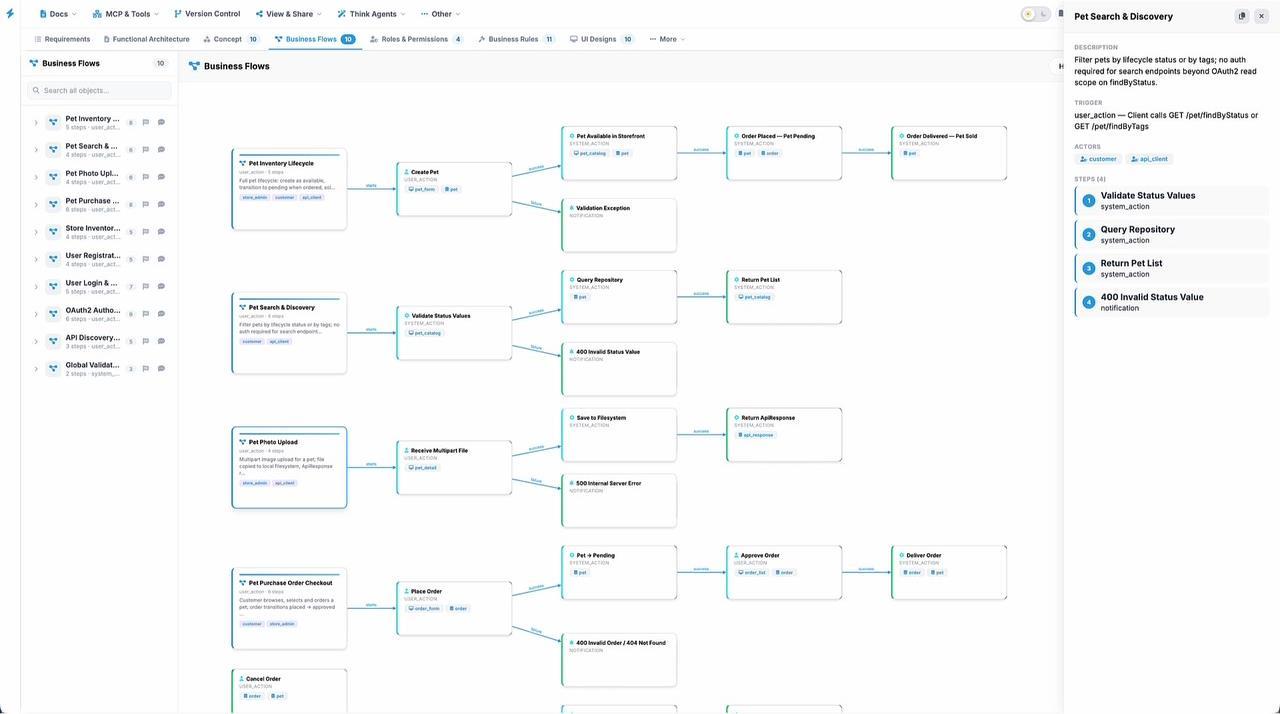
Use the flows to check and fill in UX interactions, state changes and business logic, so the design is complete.
Business rules
The Business Rules tab lists the rules hidden in the code, in plain language and as a short expression. Each rule shows its type (constraint, validation or automation), its severity, the roadmap phase it belongs to, the objects and flows it touches, and what happens on violation. For example: "Username is the unique business key", which is rejected with a 400 error if the username already exists.
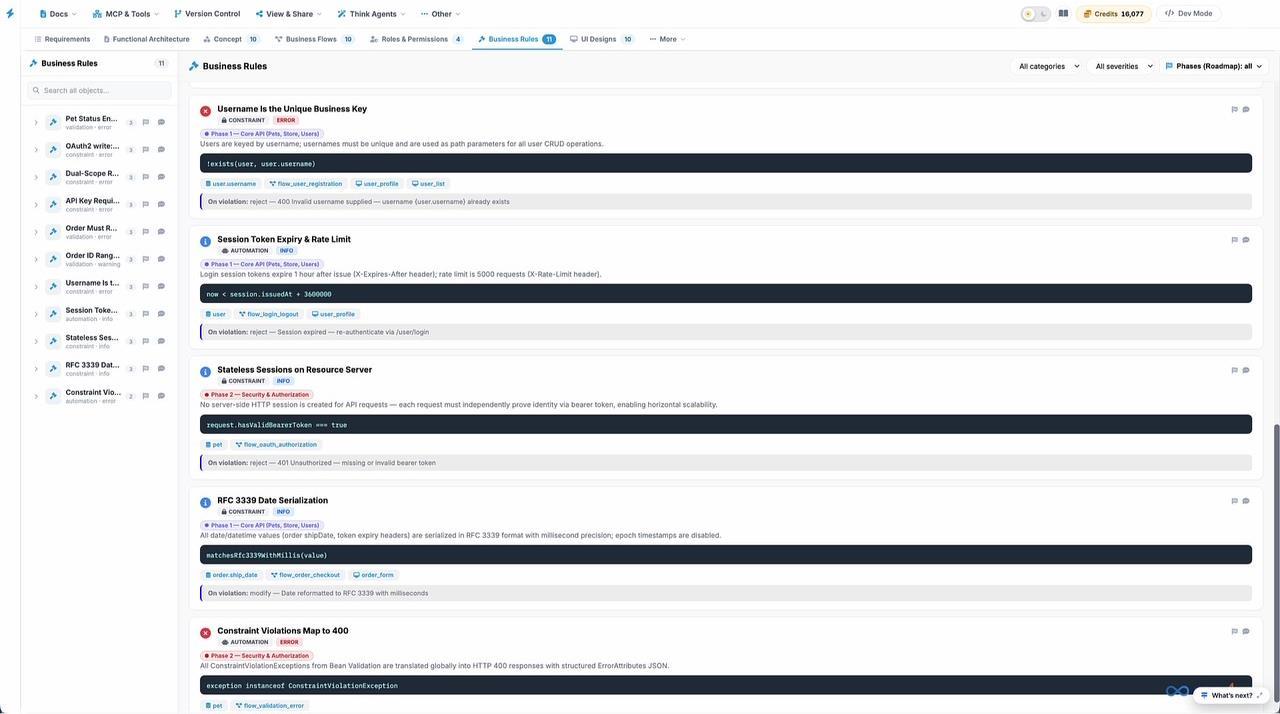
As the application, the business or compliance requirements change, add new rules here, so the blueprint keeps recording why the code behaves as it does.
Data objects
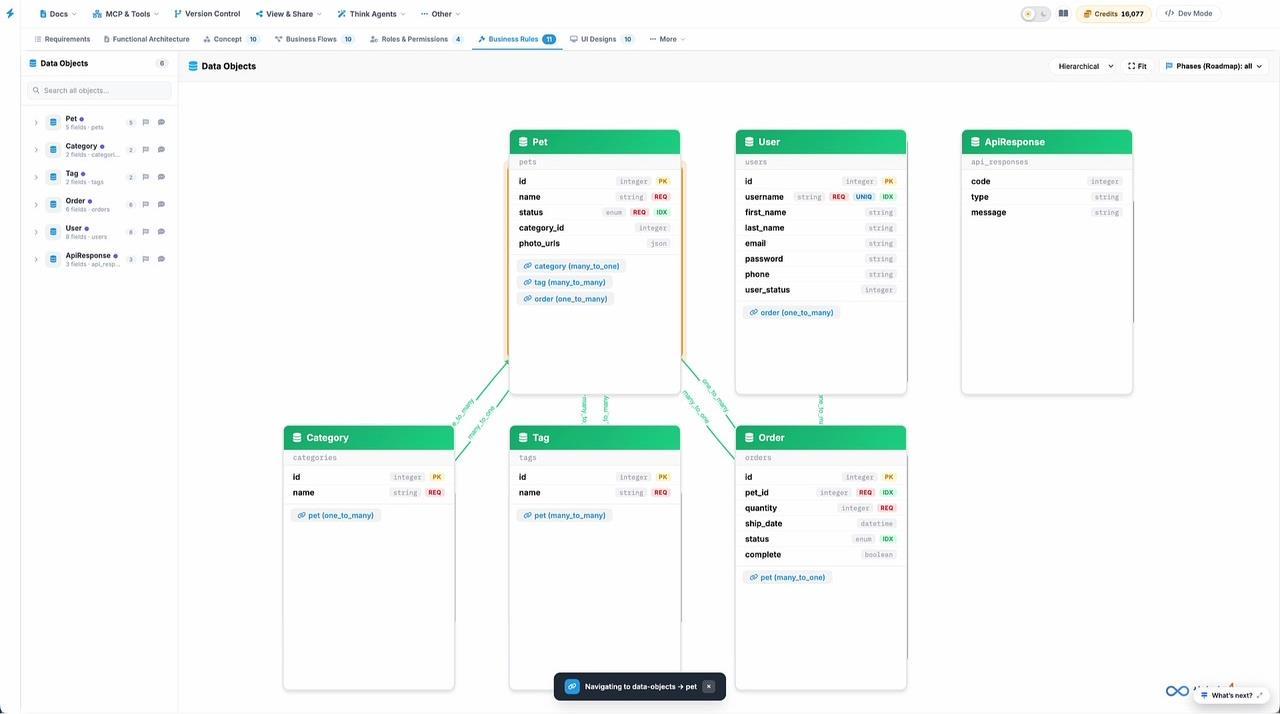
The Data Objects view shows each entity's fields, types and keys, and how the entities relate, such as a pet belonging to a category, or many orders per pet.
Step 4: Change the system with confidence
Refine the design
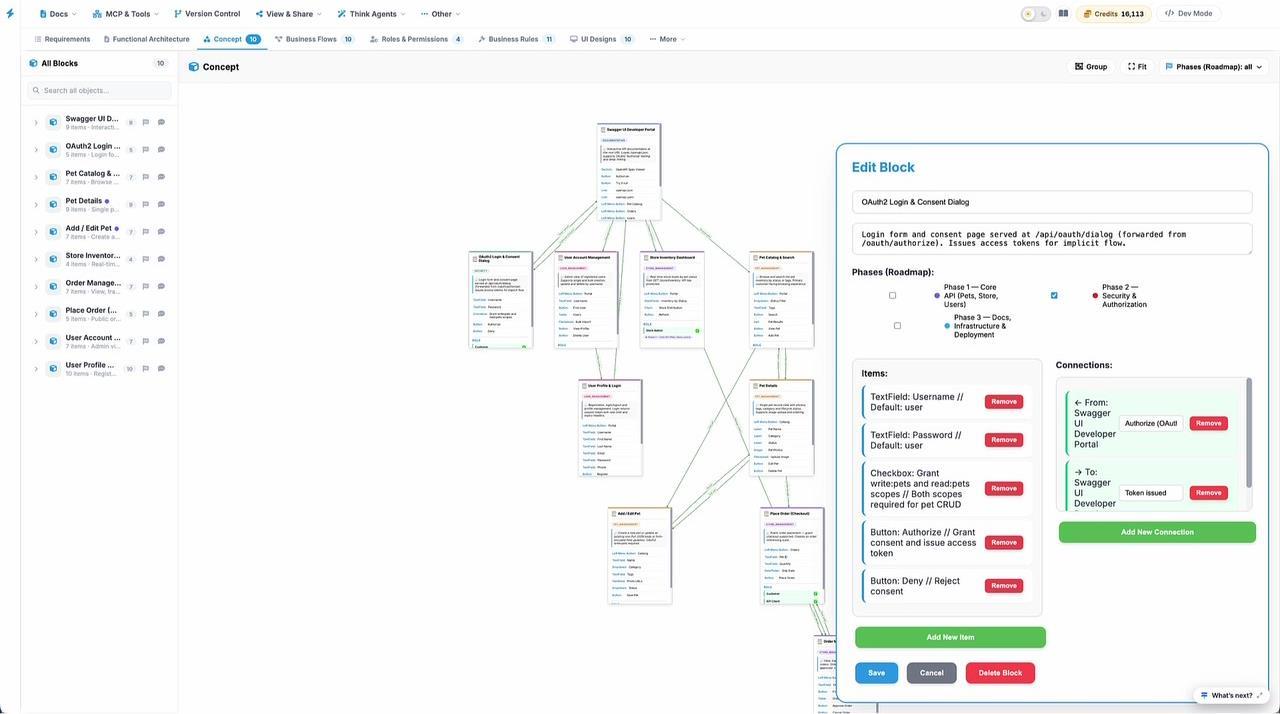
The blueprint is editable. In the Concept tab, open a block and click edit to change:
- its name and description
- the roadmap phase it belongs to, for example Phase 2: Security & Authorization
- its items: the fields, buttons and checkboxes on the screen. Use Add New Item or Remove.
- its connections to other screens, with the action that links them. Use Add New Connection or Remove.
Then click Save. You can also ask ThinkBrain in the chat to make changes for you.
Keep every change true to intent
Plan changes against the blueprint before you touch the code. Compare a proposed implementation with the approved business rules, and use the flows, data objects and architecture to see what else a change affects.
Build with the tools you already use
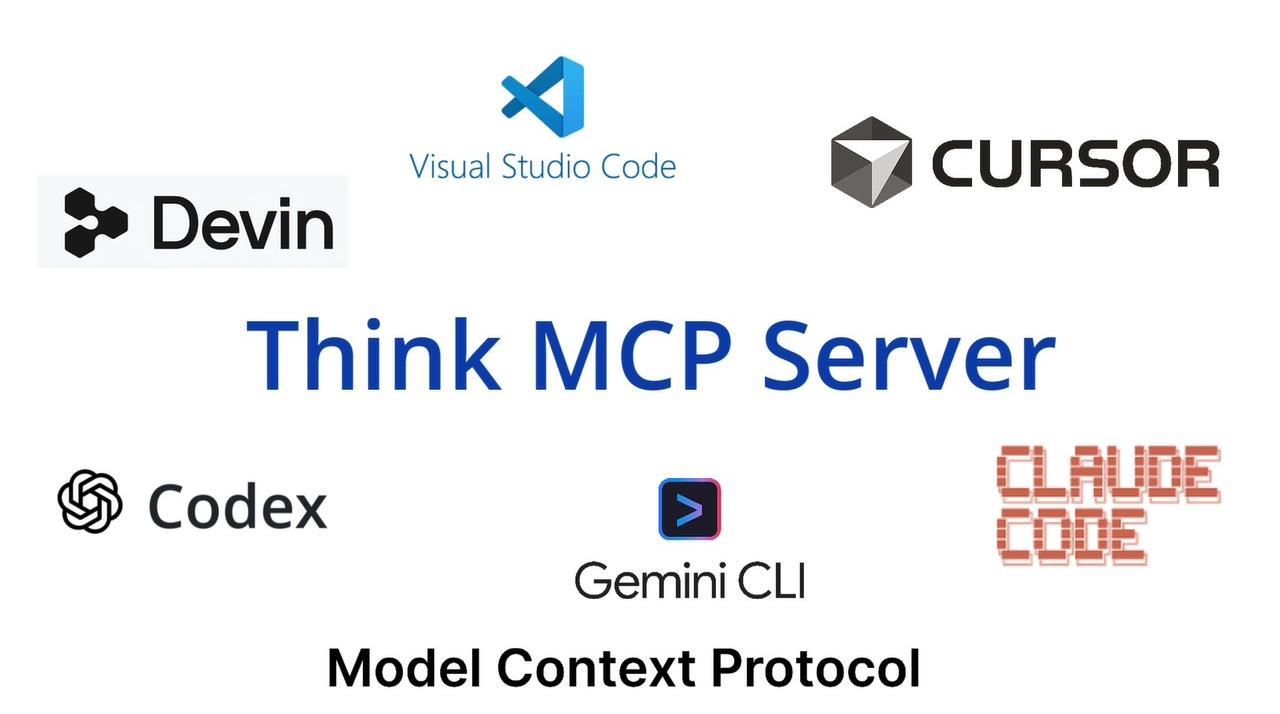
The Think MCP Server makes the reviewed blueprint available to your coding tools through the Model Context Protocol, including Claude Code, Codex, Cursor, VS Code, Gemini CLI, Devin and Windsurf. Whichever tool or model writes the code, it works from the same design. For the full setup with Claude Code, see How to: Design in Think, Code in Claude. To have Think4Ever agents build or extend the app instead, follow Step 4 of How to: Build an Application from Intent.
Clarity, coherence and control
- Clarity on how the whole system works, for every role
- Coherence on the effects of each change, checked against approved business rules
- Control of the work across your coding tools, models and environments
Tips and FAQ
Keep the page open during analysis.
The concept syncs automatically when the analysis finishes.
Start with the summaries.
To onboard someone, have them read the screen summaries and the business flows first, then the architecture. It's much faster than reading the code.
Check the business rules.
The rules Think4Ever finds are often the logic nobody wrote down. Review them with the business owner and fix anything that doesn't match intent.
Does Think4Ever change my repository?
The import takes a snapshot of the repository into your Think4Ever project folder. The source repository itself isn't changed.
What if the code changes later?
Ask Think4Ever for a fresh scan of the code. It updates the structure and concepts so the blueprint matches the code again.
Can I start from an idea instead?
Yes. Choose Design from intent. See How to: Build an Application from Intent.
Ready to try it? Create your first Living Blueprint for free at think4ever.com and choose Analyze existing code.