
Amazon Q Developer Integration Manual (Model Context Protocol)
This section guides you through connecting Amazon Q Developer (CLI & IDE) to the platform using the Model Context Protocol (MCP). Connecting your client allows Amazon Q to utilize a comprehensive context window over your project definition, contracts, rules, and data model—empowering it to manage AWS-centric building, security scanning, and infrastructure tracking.
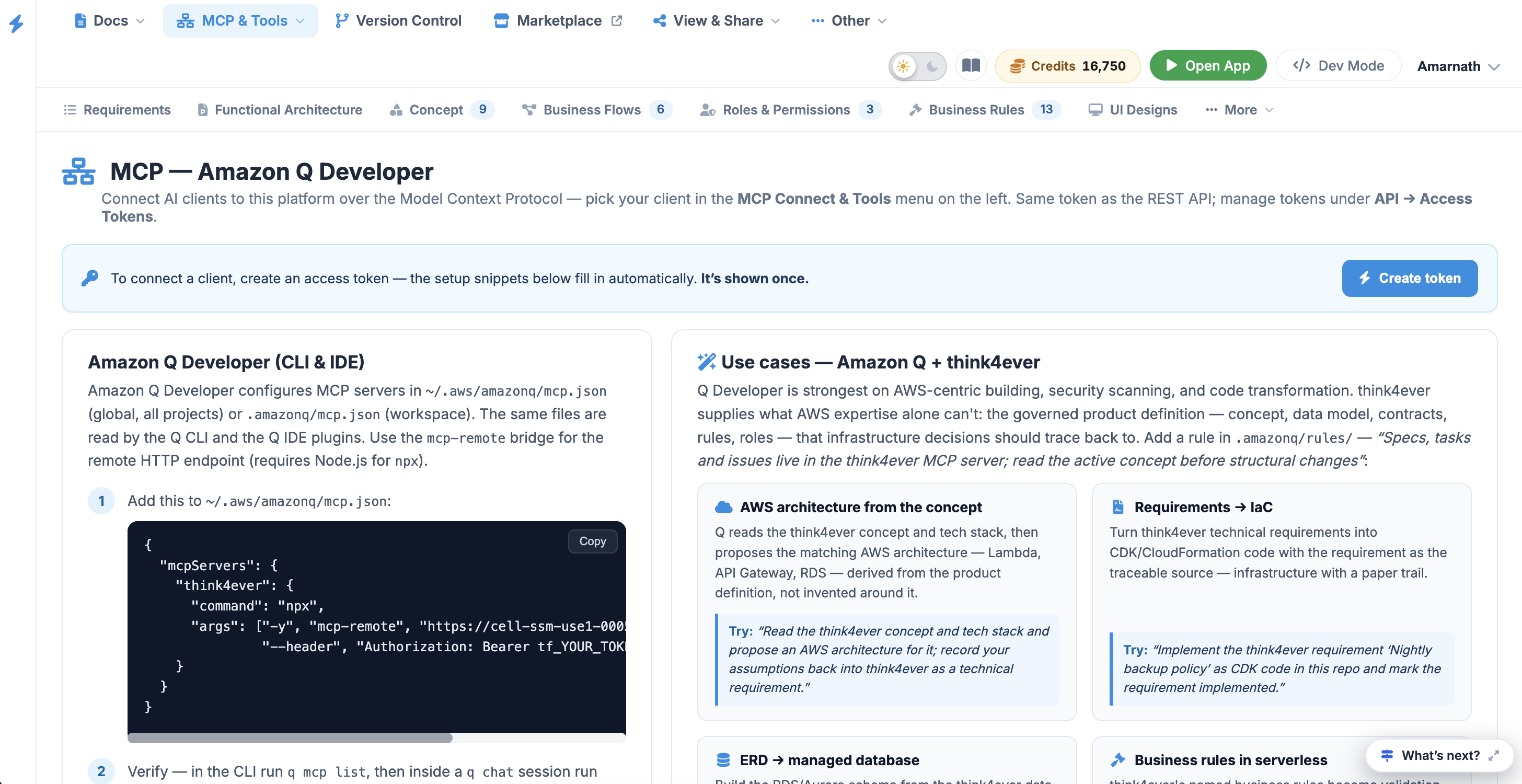 Click to enlarge
Prerequisites & Access Token Generation
Before configuring the CLI or IDE plugins, you must generate a secure access token. This token serves as your REST API key and authenticates your MCP session.
- Navigate to the MCP — Amazon Q Developer dashboard as shown in image_8f900a.jpg.
- Click the blue Create token button located in the upper-right corner of the instruction panel.
- Copy the generated token immediately.
The token configuration snippet fills in automatically upon creation and is only displayed once. Handle it securely and avoid exposing your active token in shared environments.
Configuration Setup#
Amazon Q Developer configures MCP servers in ~/.aws/amazonq/mcp.json (global,
all projects) or .amazonq/mcp.json (workspace). The same files are read by the
Q CLI and the Q IDE plugins. Use the mcp-remote bridge for the remote HTTP
endpoint (requires Node.js for npx ).
Step 1#
Add this to ~/.aws/amazonq/mcp.json :
{
  "mcpServers": {
    "Think4Ever": {
      "command": "npx",
      "args": ["-y", "mcp-remote", "https://cell-ssm-use1-0005.us.portal.think4ever.com/mcp",
               "--header", "Authorization: Bearer tf_YOUR_TOKEN"]
    }
  }
}
Step 2#
Verify — in the CLI run q mcp list , then inside a q chat session
run /tools to see the Think4Ever tools. In the IDE plugin, check
the MCP section of the Q panel.
Step 3#
Use /tools trust in q chat to pre-approve specific Think4Ever tools
so Q doesn't ask on every call.