Tasks
Tasks dashboard is the high-velocity command center where your project requirements are translated into actionable development steps. It provides a real-time audit trail of every operation performed by the AI agents—from deep-system analysis to front-end code implementation.
Key Navigation & Controls#
- Status Filters: Easily toggle between Pending, In Progress, Completed, and Failed tasks to monitor project health.
- Global Actions:
- Refresh: Sync the task queue with current agent activity.
- Cancel/Delete All: Manage your task history and halt active processes.
- + New Task: Manually trigger a new objective, such as a code fix or a new feature request.
Anatomy of a Task Card#
Every task provides deep transparency into the AI's "thought process" and execution:
| Feature | Description |
|---|---|
| Prompt Overview | Displays the specific instruction being executed (e.g., "Perform a comprehensive gap analysis"). |
| Agent Assignment | Identifies which specialized agent is working on the task (e.g., Analytical Agent, Task Manager Agent , or Developer Agent ). |
| Context Badges | Shows the specific project folder (e.g., studytool ) and the date of execution. |
| Execution Phase | Blue information boxes break down complex, multi-phase plans (e.g., "This plan was created in 10 phases") to show exactly how the AI is approaching the problem. |
| Output Type | Special badges like Analysis (purple) or Code (blue) indicate the nature of the task's result. |
Powerful Management Features#
- Gap Analysis & Auditing: The system can automatically compare your Existing Schema against your Concept Design to identify missing tables or logic gaps.
- Subtask Branching: Use the + New Subtask button to decompose large architectural goals into granular, manageable technical steps.
- Version Tracking: Icons for Edit, Rerun , and Delete allow you to iterate on specific prompts until the output matches your exact vision.
- File-Level Inspection: Tasks provide a transparent look at the specific files being read or modified, including file paths and sizes (e.g., authController.js - 17290 bytes).
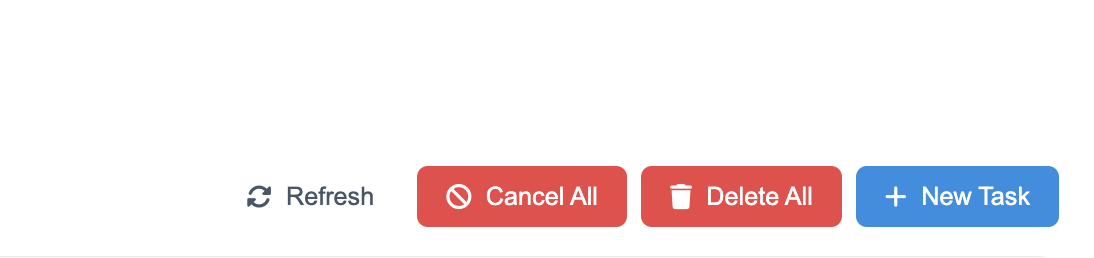
Task Controls found in the upper right corner of the Project Tasks dashboard. They allow you to manage the entire AI agent queue with a single click.
 Click to enlarge
Refresh#
- Function: Manually updates the task list.
- When to use: If you've just submitted a task or are waiting for an agent to finish a complex coding operation, hit Refresh to see the most current status (e.g., moving from "In Progress" to "Completed").
Cancel All#
- Function: Immediately halts all active and pending agent operations.
- When to use: Use this if you realize a prompt was incorrect or if the AI is heading in a technical direction you want to pivot away from. It prevents the system from wasting resources on tasks you no longer need.
Delete All#
- Function: Clears your entire task history from the dashboard.
- When to use: Best for "cleaning house" once a major milestone—like the TransparencySeal core architecture—is finished and verified. Note: This action is permanent and clears the audit trail.
+ New Task#
- Function: Opens the New Task modal.
- When to use: This is your primary entry point for delegating work. Use it to trigger everything from a simple UI change to a massive database audit.
Creating a New Task#
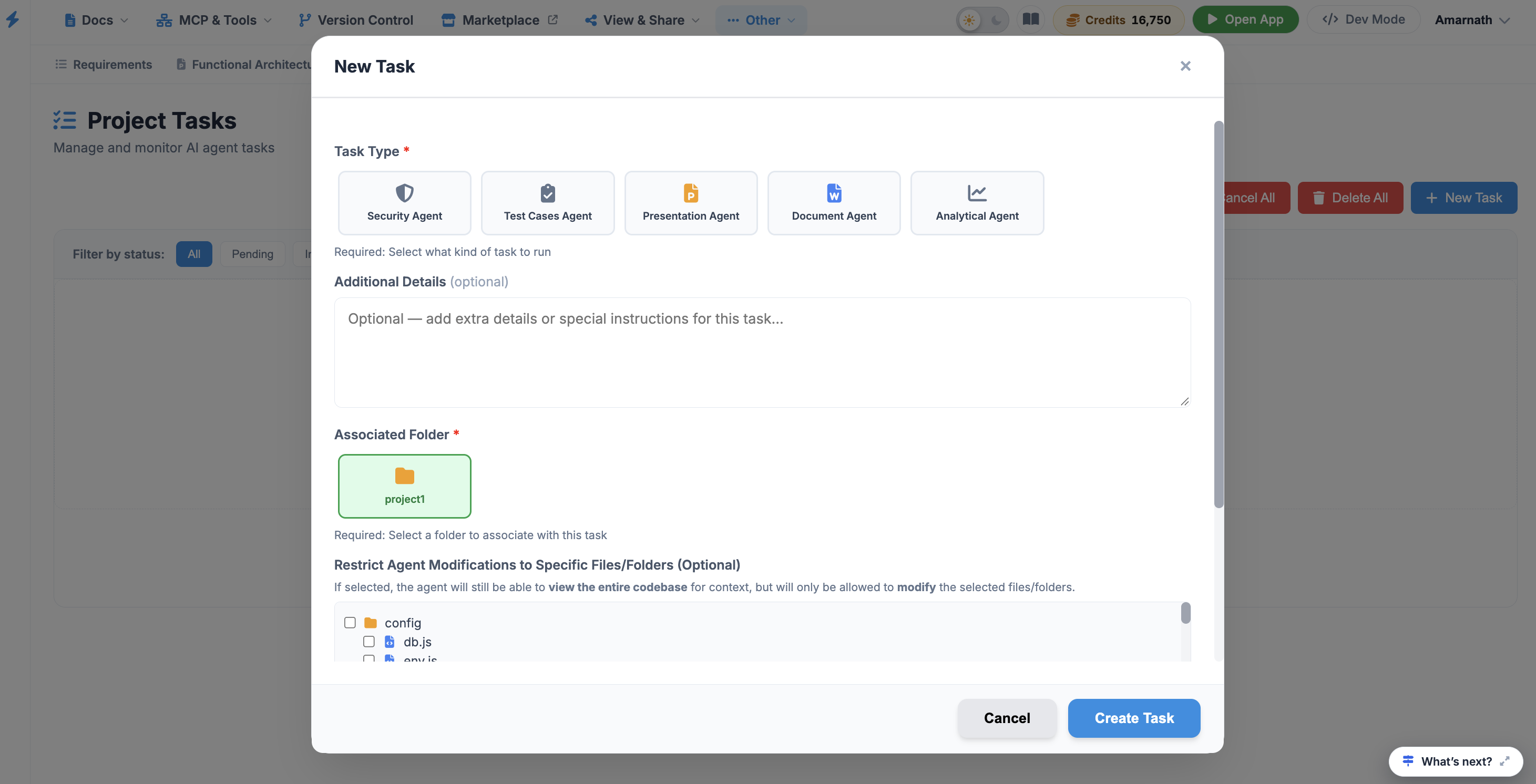
The New Task modal is where you delegate specific objectives to specialized AI agents. To ensure the best results, you must provide a clear description, select the appropriate agent for the job, and associate the task with the correct project folder.
 Click to enlarge
Components of New Task window:#
1. Task Description#
This text area is for your natural language instructions.
- Be Specific: Instead of saying "Fix the login," try "Fix the authentication logic in authController.js to prevent duplicate session tokens."
- Reference Assets: Mention specific database tables, UI components, or documentation files you want the agent to consider.
2. Assign Agent Type#
Selecting the right "specialist" ensures the AI uses the correct toolset for the job.
| Agent | Primary Responsibility |
|---|---|
| Terminal Agent | Executes command-line instructions, installs dependencies, and manages file systems. |
| Developer Agent | Writes, refactors, and debugs application code (HTML, CSS, JS, etc.). |
| Database Agent | Manages schemas, writes SQL queries, and handles data migrations. |
| Presentation Agent | Focuses on UI/UX layouts, slide decks, and visual concept assets. |
| Document Agent | Drafts and updates Functional Specs, Technical Specs, and User Manuals. |
| Container Agent | Orchestrates Docker/Kubernetes settings and deployment environments. |
| Task Manager Agent | High-level planning; breaks down complex goals into a multi-phase roadmap. |
| QA Agent | Performs quality assurance, identifies UI inconsistencies, and checks logic flows. |
| Video Agent | Generates video tutorials or walkthroughs based on project state. |
| Analytical Agent | Performs "Read-Only" deep dives, such as Gap Analysis or security audits. |
| Security Agent | Scans for vulnerabilities and ensures encryption/authentication compliance. |
| Test Cases Agent | Automatically generates unit tests and end-to-end testing scripts. |
3. Associated Folder#
Choose the project directory where the agent should focus its work.
- In your current view, the "selected project" folder is selected.
- This ensures the agent doesn't pull context from unrelated projects, keeping the current project's logic separate from other builds.
Final Actions#
- Cancel: Discards the draft and returns you to the Project Tasks dashboard.
- Create Task: Submits the prompt to the AI queue. You can track its progress immediately on the main dashboard under the Pending or In Progress tabs.